


Projects Category: Standard
- Home
- Standard

The Situation:
Oodles of Noodles is a fictional collection of data related to its sales across the United States. It encompasses various attributes, such as revenue, customer preferences, shipment time, etc. Our goal is to transform their raw data into meaningful insights and recommendations for management. More specifically, we need to:
- Track KPIs (revenue, meal kits sold, shipments, customer rating)
- Compare regional and state-level performance
- Identify high-value subscription plans and cuisine types
The Data:
We’ve been given a collection of raw data (CSV files), which contains information about shipments, returns, meal kits, customers, sales territories, and reviews, in a total of 9 tables, from the years 2020-21.
The Task: We are tasked with using solely Microsoft Power BI to:
- Connect and transform/shape the data in Power BI’s back-end using Power Query
- Build a relational data model, linking the 8 fact and dimension tables
- Create calculated columns and measures with DAX
- Design a multi-page interactive dashboard to visualize the data in Power BI’s front-end
The Process:
1. Connecting and Shaping the Data
Firstly, we imported the data into the Power Query editor to transform and clean it. The next process involved:
Removing Duplicates: Duplicate entries were removed from the dataset to ensure accurate analysis.
Handling Null or Missing Values: For some columns, missing values were replaced with defaults or averages. Null values in “key” columns were removed using filters.
Data Type Conversion: Columns were converted to appropriate data types to ensure consistency. Dates were converted to Date type, numerical columns to Decimal or Whole Numbers, and text columns to Text.
Column Splitting and Merging: Several columns were split to separate concatenated information, or merged to create a unified name (such as Customer Full Name).
Standardising Date Formats: All date columns were formatted consistently to facilitate time-based analysis. This step was important for ensuring accurate time-series analysis in Power BI.
Removing Unnecessary Columns: Irrelevant columns were removed to streamline the dataset. This helped focus the analysis on relevant information, reducing memory usage and improving performance.
2. Building a Relational Data Model
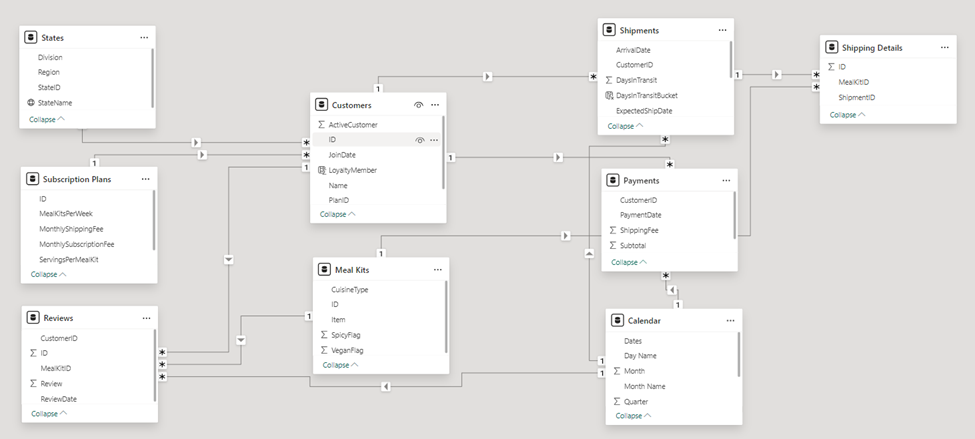
Secondly, we modeled the data to create a snowflake schema. This process involved creating relationships between the dimension and fact tables, ensuring cardinalities were one-to-many relationships. We enabled active or inactive relationships, created hierarchies for fields such as Geography (Continent-Country-Region) and Date (Start of Year-Start of Month-Start of Week-Date), and finally hid the foreign keys from the report view to ease the data analysis and visualization steps and reduce errors.
3. Creating Calculated Columns and Measures
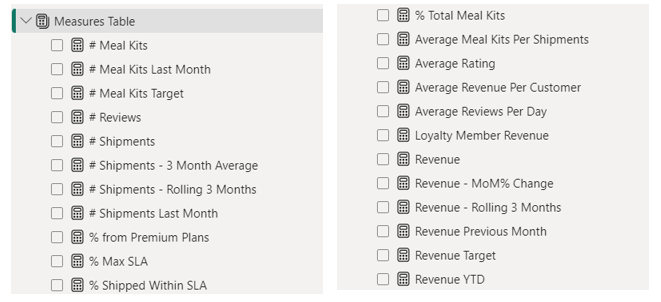
Next, we used Power BI’s front-end formula language, DAX, to analyze our relational data model and create several calculated columns (for filtering) and measures (for aggregation) that we could later reference and use when analyzing and visualizing the data. We used calculated columns to determine whether a customer is active and a loyal member. The list of calculated measures includes key information on revenue, total shipments, reviews, SLA, and more.
4. Visualising the Data
The final step of the project was creating a multi-page interactive dashboard, including a range of visuals and KPIs that could serve management and lead to informed decision-making. We used several visuals and tools to demonstrate and visualize the data across 4 report pages, including KPI cards, line and bar charts, matrices, gauge charts, and tree maps. We ensured the report was fully interactive and simple to navigate, with icons used to enable filters, cancel filters, and guide users to each report page with ease. Features such as drill-through, bookmarks, parameters, and tooltips were also used throughout the dashboard, further enhancing its usefulness and impact on management.
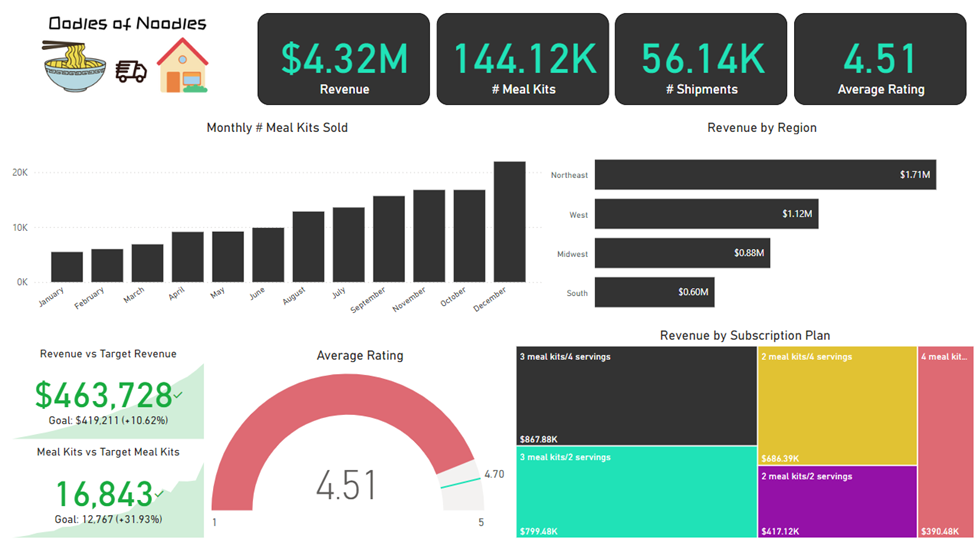
Executive Dashboard: The first report page provides a high-level view of Oodles of Noodles’ overall performance. We used card visuals to present Key Performance Indicators such as overall revenue, number of meal kits sold, total shipments, and average rating by customers. We also included additional cards to compare current and previous month performances, providing insights into recent trends, a clustered bar chart to show revenue by region, a gauge chart to display ratings by customers, and a tree map to display the top 5 subscription plans by revenue.
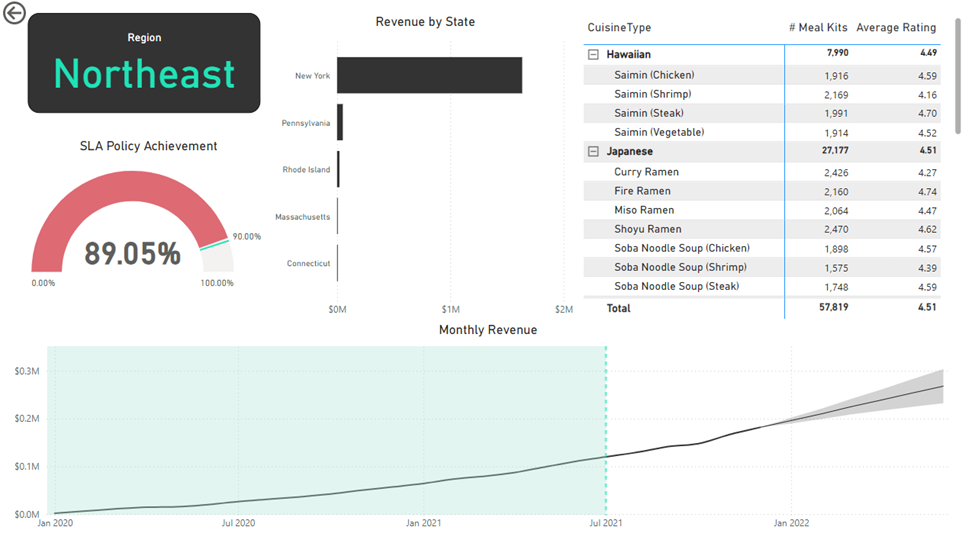
Region: The second report page is a drill-through page by region to further analyze the performance in a specific region. It consists of a bar chart that shows revenue by states in a region, a matrix to display cuisine types by the number of meal kits sold and average ratings, a gauge chart to analyze the SLA policy implementation, and a line chart that visualizes the trending revenue from 2020-2021 and highlights long-term performance. This offers insight into Oodles of Noodles’ sales distribution by region and state.
Subscription: The third report page focuses on detailed subscription-level analysis. It displays information such as average monthly shipping fee and total meal kits by subscription plan, a clustered bar chart to visualize loyalty member revenue by state, a matrix that displays the top 30 customers by revenue for the subscription plan, a decomposition tree that displays meal kits by region and month, and a line chart that displays month-on-month revenue trends for the years 2020-2021.

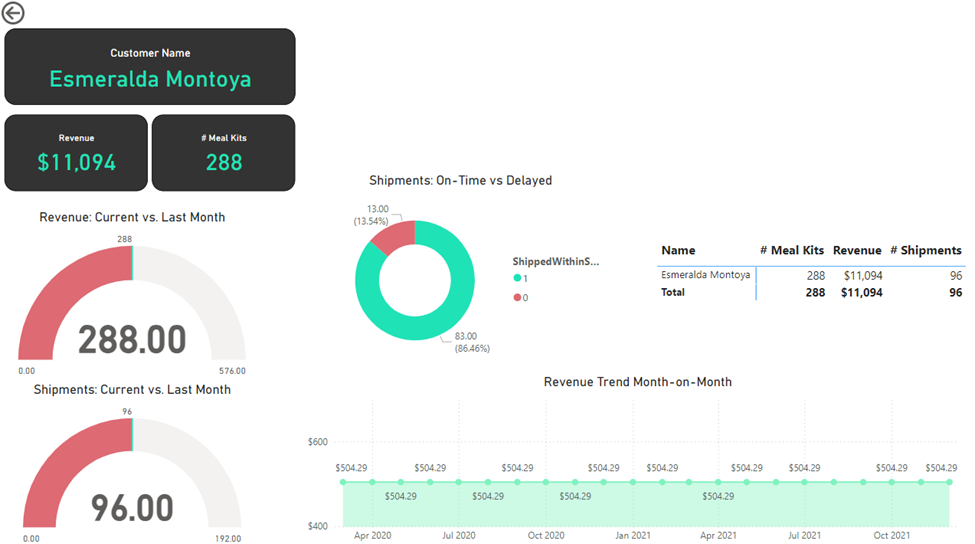
Customer Detail: The fourth and final report page provides deeper insight into customer behavior and value. It uses gauge charts to show revenue comparison for the current and last month and shipments for the current vs last month, a donut chart to show delayed vs on-time delivery to customers, a matrix for the number of meal kits, revenue, and shipments for customers, and a line chart that displays month-on-month revenue.

Market Mindz (Power BI)
The Situation:
Market Mindz is a fictional marketing data by a firm called Market Mindz that specializes in Food and Beverage products. The dataset contains information about marketing strategies, customers, and products. Our goal is to transform their raw data into meaningful insights and recommendations for management. More specifically, we need to:
- Track KPIs (customers, average income, online/in-store purchases, average age etc)
- Track and compare campaign’s performance
- Analyse buyer’s composition
- Purchase drivers
The Data:
We’ve been given a collection of raw data (CSV files), which contain information about products, platform (online, in-store), customers, and campaign data, spanning from the years 2012 to 2014.
The Task: We are tasked with using solely Microsoft Power BI to:
- Connect and transform/shape the data in Power BI’s back-end using Power Query
- Build a relational data model, linking fact and dimension tables
- Create calculated columns
- Design a multi-page interactive dashboard to visualize the data in Power BI’s front-end
The Process:
1. Connecting and Shaping the Data
Firstly, we imported the data into the Power Query editor to transform and clean it. The next process involved:
Removing Duplicates: Duplicate entries were removed from the dataset to ensure accurate analysis.
Handling Null or Missing Values: For some columns, missing values were replaced with defaults or averages. Null values in “key” columns were removed using filters.
Data Type Conversion: Columns were converted to appropriate data types to ensure consistency. Dates were converted to Date type, numerical columns to Decimal or Whole Numbers, and text columns to Text.
Column Splitting and Merging: Several columns were split to separate concatenated information, or merged to create a unified name (such as Customer Full Name).
Standardising Date Formats: All date columns were formatted consistently to facilitate time-based analysis. This step was important for ensuring accurate time-series analysis in Power BI.
Removing Unnecessary Columns: Irrelevant columns were removed to streamline the dataset. This helped focus the analysis on relevant information, reducing memory usage and improving performance.
2. Building a Relational Data Model
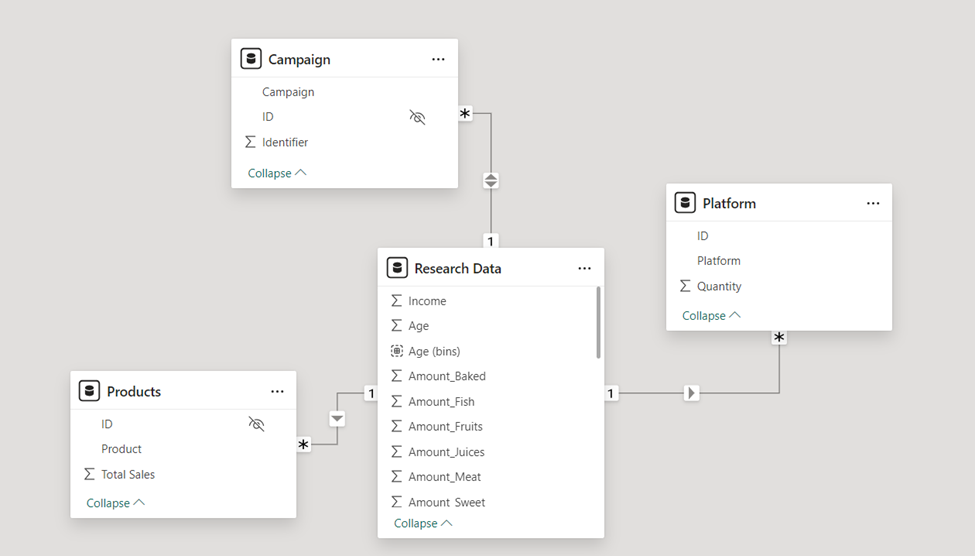
Secondly, we modeled the data to create a snowflake schema. This process involved creating relationships between the dimension and fact tables, ensuring cardinalities were one-to-many relationships.
Enabling active or inactive relationships, creating hierarchies for fields such as Geography (Continent-Country-Region) and Date (Start of Year-Start of Month-Start of Week-Date), and finally hiding the foreign keys from report view to ease the data analysis and visualization steps and reduce errors.
3. Creating Calculated Columns
In Power Query editor, we created calculated columns such as customer age bins, birth year, amount juices, amount fruit, amount meat etc.
4. Visualising the Data
The final step of the project was creating a multi-page interactive dashboard, including a range of visuals and KPIs that could serve management and lead to informed decision-making. We used several visuals and tools to demonstrate and visualize the data across the 3 report pages, including KPI cards, line and bar charts, matrices, gauge charts, maps, donut charts, and slicers. We made sure the report was fully interactive and simple to navigate, with icons used to enable filters, cancel filters, and guide users to each report page with ease. Features such as drill-through, bookmarks, parameters, and tooltips were also used throughout the dashboard, further enhancing its usefulness and impact on management.
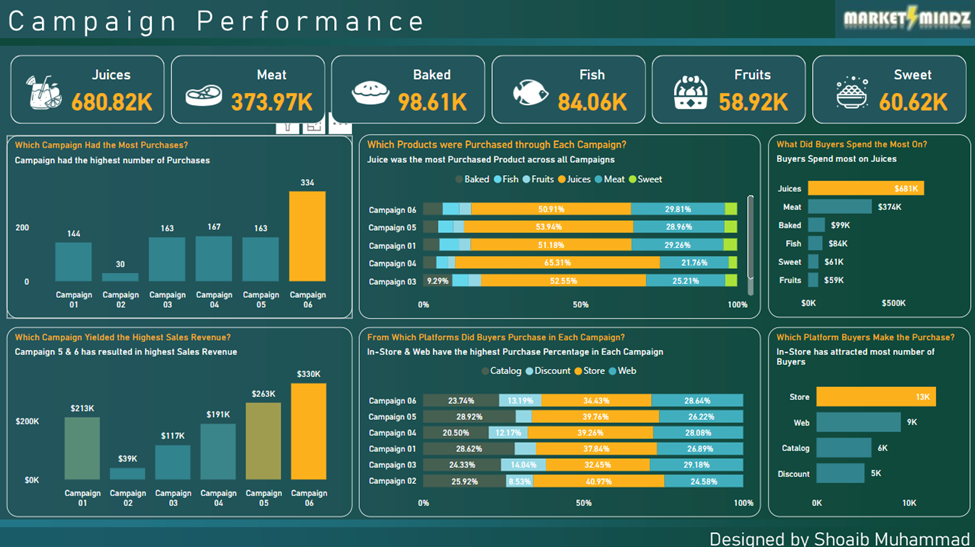
Executive Dashboard: The first report page provides a high-level view of Market Mindz overall performance throughout different campaigns. We used card visuals to present Key Performance Indicators such as overall sales for juices, meat, baked, fish, fruit and sweet products. Using clustered columns charts, stacked bar charts and clustered bar charts to find out campaigns with the most purchases, campaigns with highest revenue, product sales by each campaign, preferred platform in each campaign, revenue by product, and preferred platform by buyers.
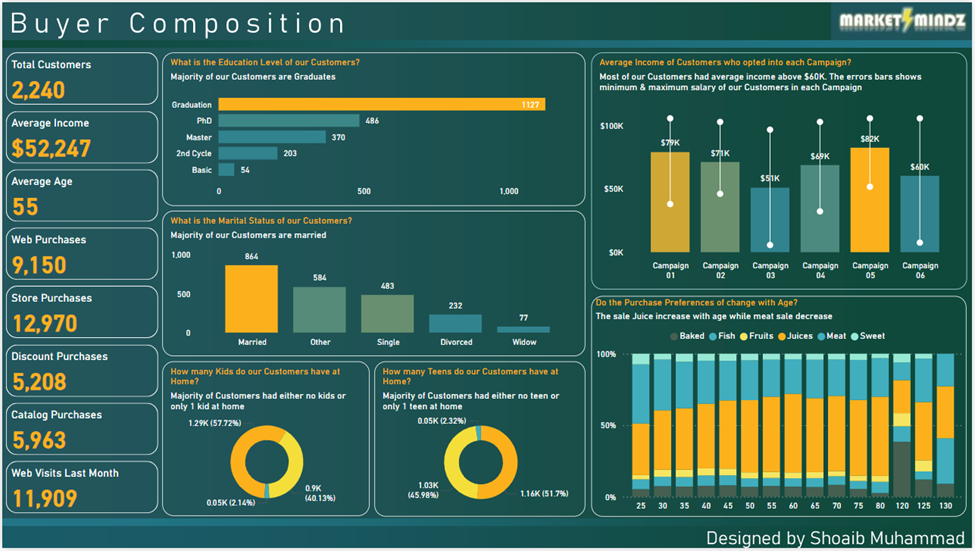
Buyer Composition: The second report page throws a light on buyers’ behavior. It lists Key Performance Indicators like total customers, average income, average age, purchases from different sources like online, in-store etc., and monthly website visits.
To further study about customers, we have used bar chart to list the count of buyers by education level, column chart to visualize average income of customers by each campaign, column chart for count of customers by marital status, donut charts to display whether customers had kids/teens at home and the most interesting chart here is the stacked column chart that visualizes purchase preferences with age.
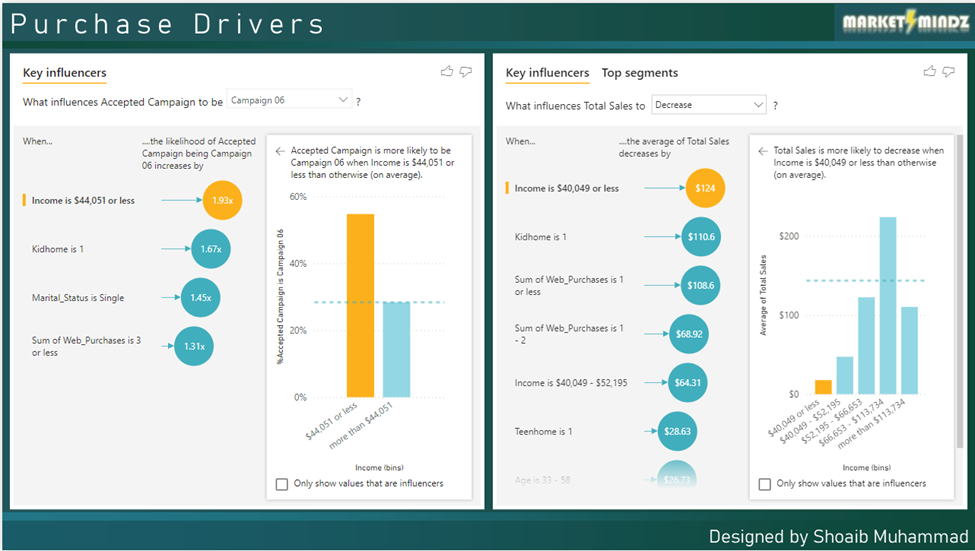
Purchase Drivers: The third report page focuses on finding about what led the buyers to make a purchase. Here we used Key Influencers visual that uses AI to find out keys factors that drive an event.
The first visual shows the key factor that led a customer to become part of a campaign is Income. Others contributing factors are also shown in the visual.
The second visual shows the key factor that contributed in increase or decrease of sales. The visual clearly shows that the main factor that leads to decrease of sales in income below average.

Global Super Store (Power BI)
The Situation:
Global Super Store is an online retail store with customers across the globe offering a variety of products categorized into three main sections which includes Technology, Office Supplies, and Furniture. Our goal is to transform their raw data into meaningful insights and recommendations for management. More specifically, we need to:
- Track KPIs (sales, revenue, profit, returns)
- Compare regional performance
- Analyze category and product-level trends
- Identify high-valued customers
- Identify top performing sales persons
The Data:
We’ve been given a collection of raw data (CSV files), which contain information about transactions, products, customers, sales person, and sales territories, spanning from the years 2018 to 2020.
The Task: We are tasked with using solely Microsoft Power BI to:
- Connect and transform/shape the data in Power BI’s back-end using Power Query
- Build a relational data model, linking the 8 fact and dimension tables
- Create calculated columns and measures with DAX
- Design a multi-page interactive dashboard to visualize the data in Power BI’s front-end
The Process:
1. Connecting and Shaping the Data
Firstly, we imported the data into the Power Query editor to transform and clean it. The next process involved:
Removing Duplicates: Duplicate entries were removed from the dataset to ensure accurate analysis.
Handling Null or Missing Values: For some columns, missing values were replaced with defaults or averages. Null values in “key” columns were removed using filters.
Data Type Conversion: Columns were converted to appropriate data types to ensure consistency. Dates were converted to Date type, numerical columns to Decimal or Whole Numbers, and text columns to Text.
Column Splitting and Merging: Several columns were split to separate concatenated information, or merged to create a unified name (such as Customer Full Name).
Standardising Date Formats: All date columns were formatted consistently to facilitate time-based analysis. This step was important for ensuring accurate time-series analysis in Power BI.
Removing Unnecessary Columns: Irrelevant columns were removed to streamline the dataset. This helped focus the analysis on relevant information, reducing memory usage and improving performance.
2. Building a Relational Data Model
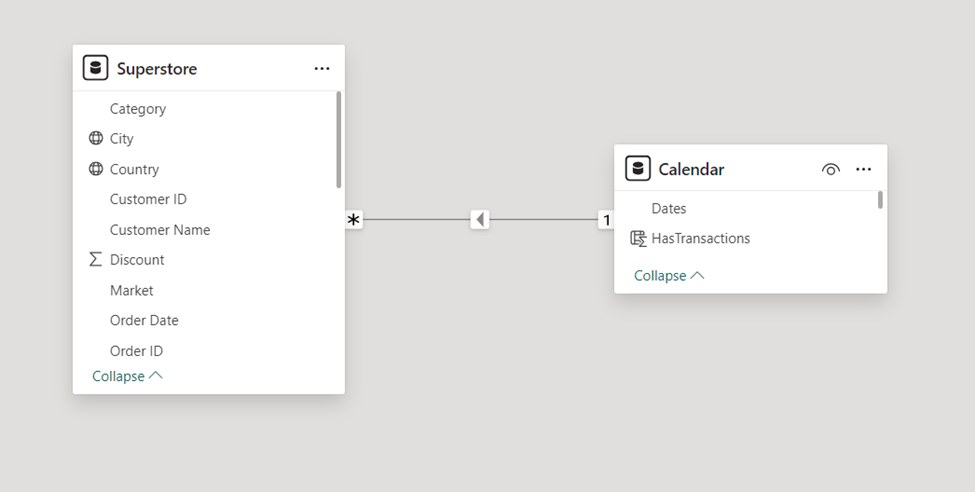
The data is combined into a single table and has all the required information. So, there’s no need for modelling but we created a Calendar table to easily analyze data.
3. Creating Measures
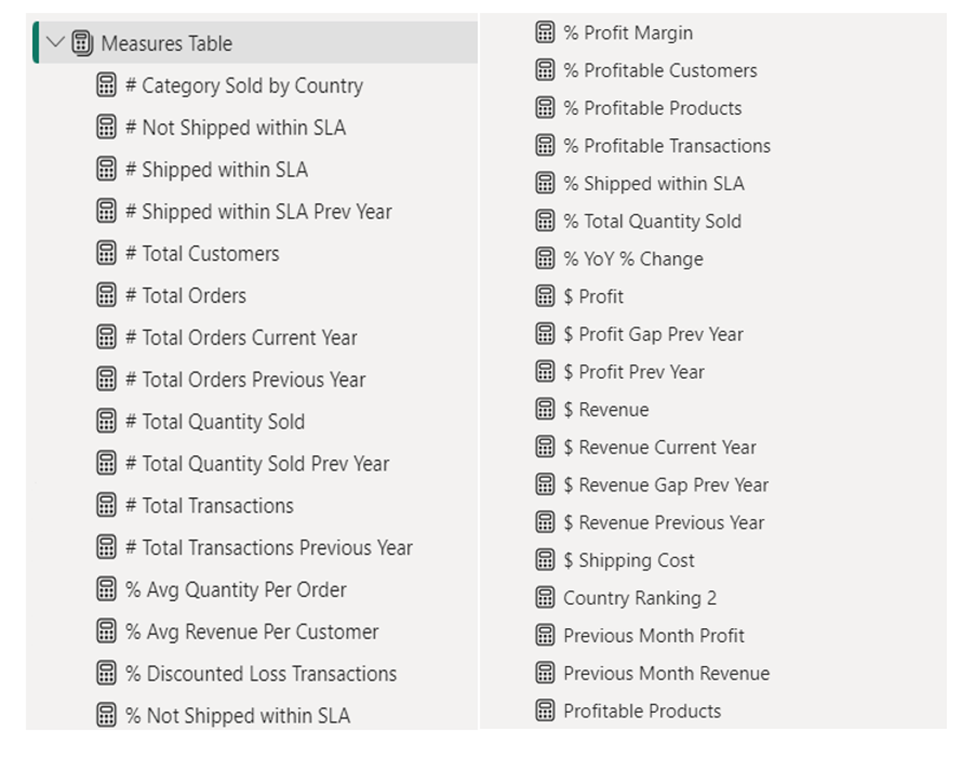
Next, we used Power BI’s front-end formula language, DAX, to analyze our relational data model and create several calculated columns (for filtering) and measures (for aggregation), that we could later reference and use when analyzing and visualizing the data.
The list of calculated measures is available below and includes key information on revenue, profit, orders, returns, and more.
4. Visualising the Data
The final step of the project was creating a multi-page interactive dashboard, including a range of visuals and KPIs that could serve management and lead to informed decision-making. We used several visuals and tools to demonstrate and visualize the data across the 12 report pages, including KPI cards, line and bar charts, waterfall charts, matrices, gauge charts, maps, donut charts, and slicers. We made sure the report was fully interactive and simple to navigate, with icons used to enable filters, cancel filters, and guide users to each report page with ease. Features such as drill-through, bookmarks, parameters, and tooltips were also used throughout the dashboard, further enhancing its usefulness and impact on management.
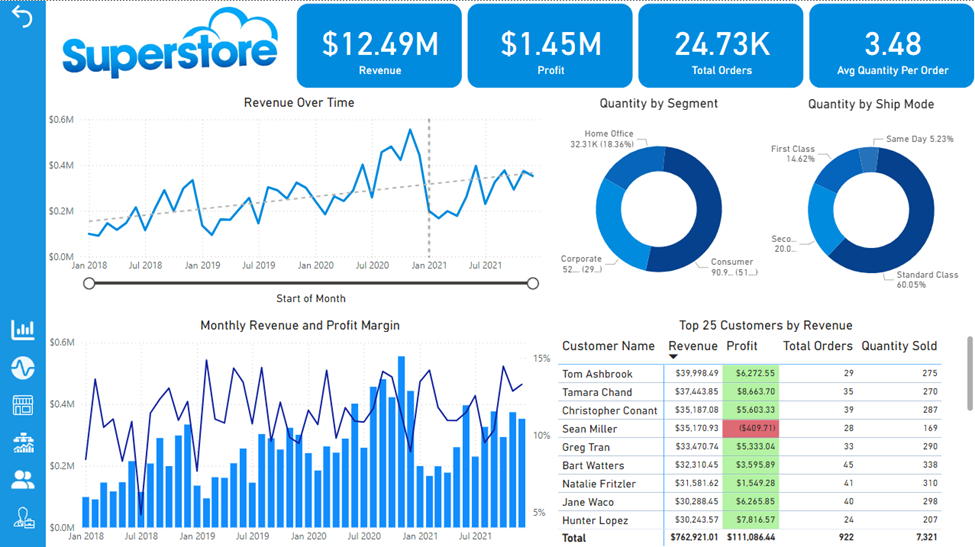
Executive Dashboard: The first report page provides a high-level view of the overall performance. We used card visuals to present Key Performance Indicators such as overall revenue, profit, total orders, and average quantity per order. To track an overall Revenue performance, we used a line chart that shows that each year from January to July there is a decline in revenue and then from September to December the store had fetched nice revenue. Another useful information that the chart has is that the covid-19 had caused a massive decline in sales causing a drastic decline in revenue.
We also included donut charts to visualize sales by segment and also quantity shipped by shipping mode. A combination of line and column chart nicely depict the profit margin throughout the period. We used a matrix to display the top 25 customers based on key indicators (revenue, profit, total orders and quantity sold).
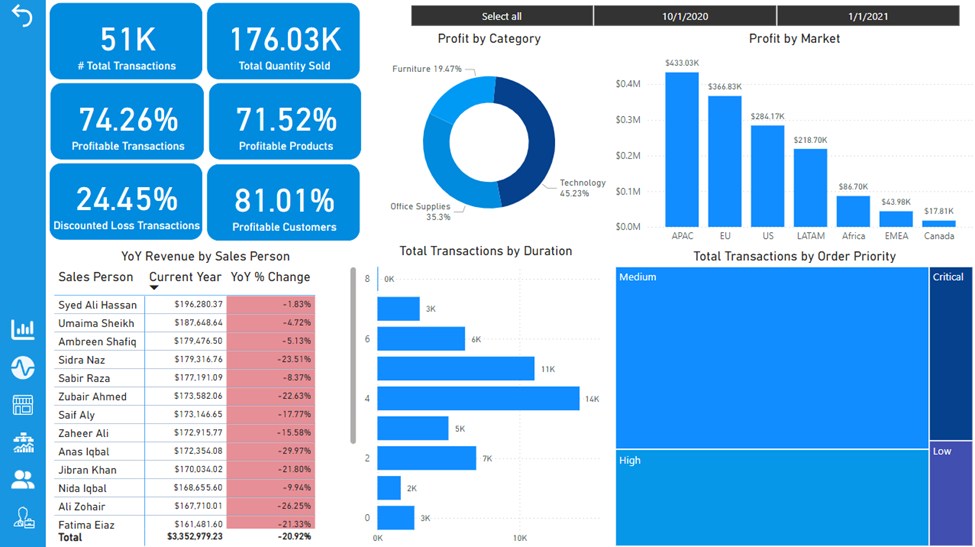
Key Insights: The second report page displayed a more in-depth view of the store’s performance with more Key Performance Indicators such as total transactions, total quantity sold, percentage of profitable transactions, percentage of profitable products, percentage of discounted loss transactions (products in loss with discount as well) and percentage of profitable customers. A donut chart that shows contribution of each category in profit, a bar chart for profit by market, a matrix for showing sales performance, a bar chart for count of transactions by duration and a tree map for total transactions by order priority.
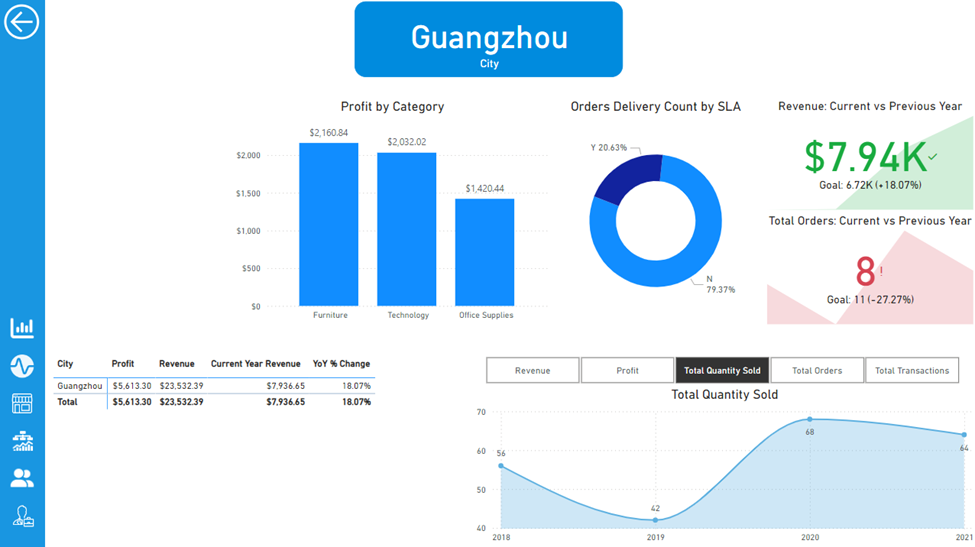
Market: The third report page focuses on detailed market-level analysis. It displayed detailed product information for countries in the selected market (drill through from Key Insights report page). It also included a column chart for visualizing profit by category in the current market, a donut chart for visualizing shipments within SLA, KPI visuals for Revenue and Orders comparisons (current vs previous years), and an interactive line chart showing, revenue, profit, quantity sold, total orders, and total transactions (using parameters that can be switched to display the selected parameter).
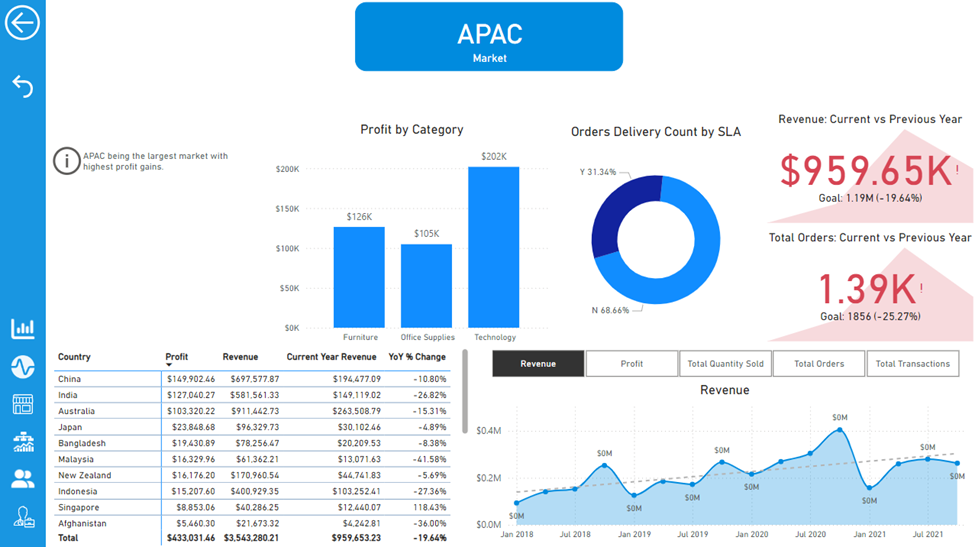
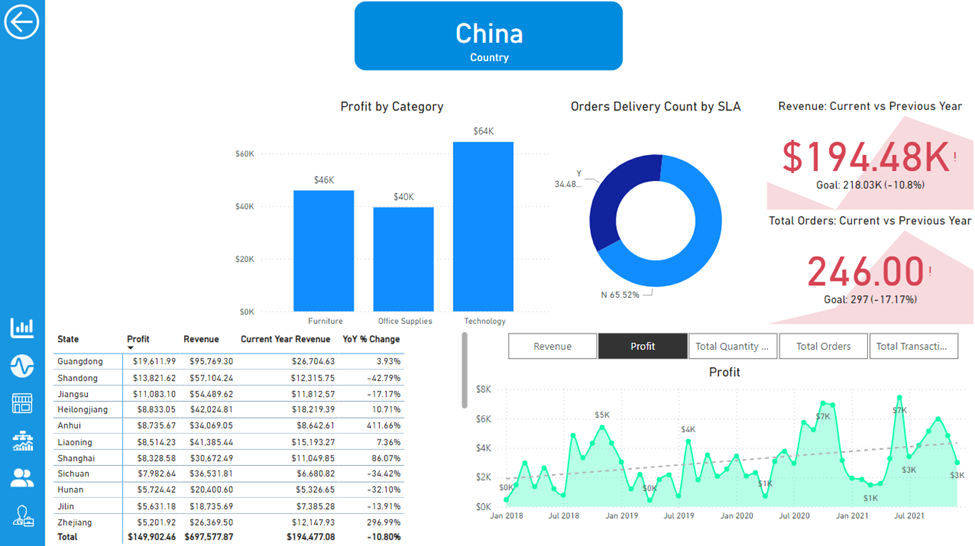
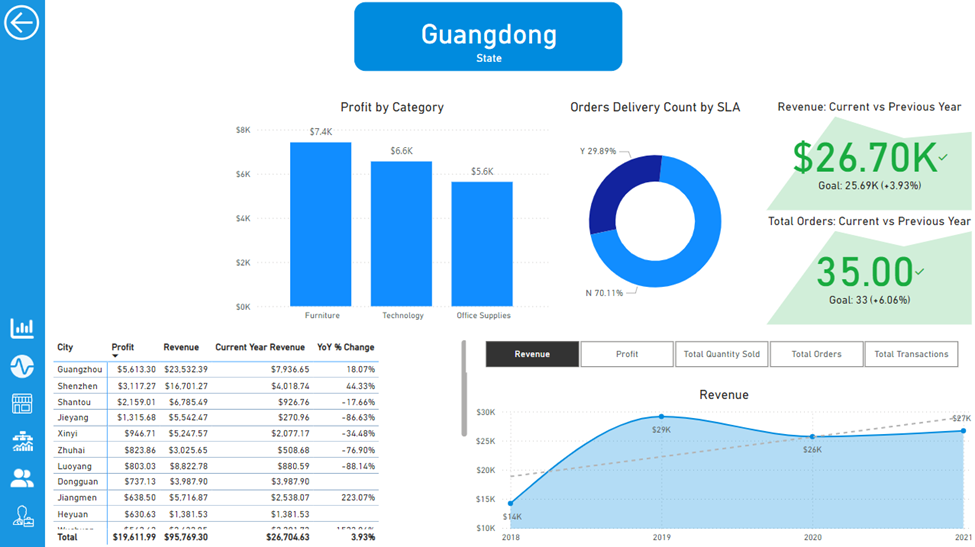
We also included further report pages for a deeper analysis of the market like Country, State and City.
Country:
State:
City:
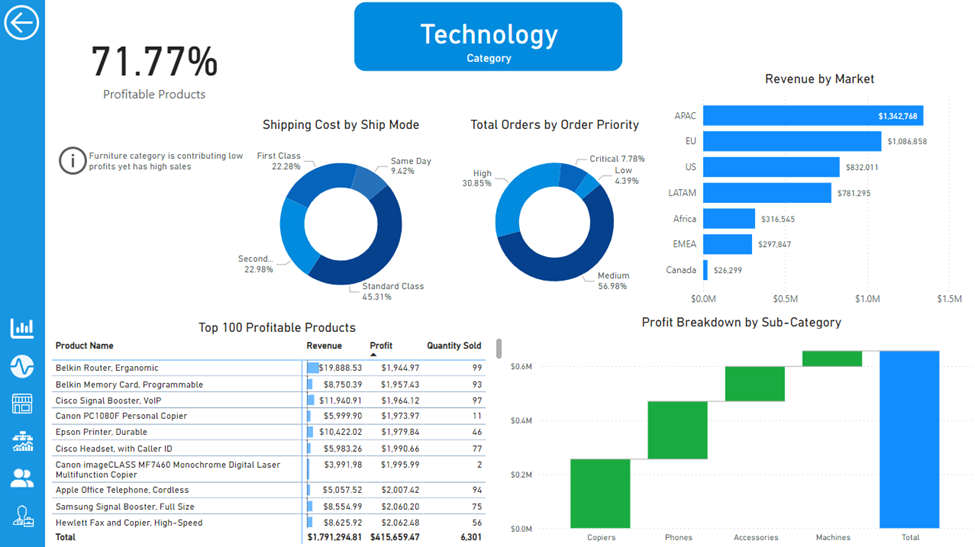
Category: The next reportpage throws a light on how a category has performed during the period. We have used donut charts to visualize shipping cost by ship mode and total orders by order priority, a bar chart that visualize how a category has performed in each market, a matrix that lists top 100 profitable products and a waterfall chart that shows a breakdown of profit by subcategory in the selected category.
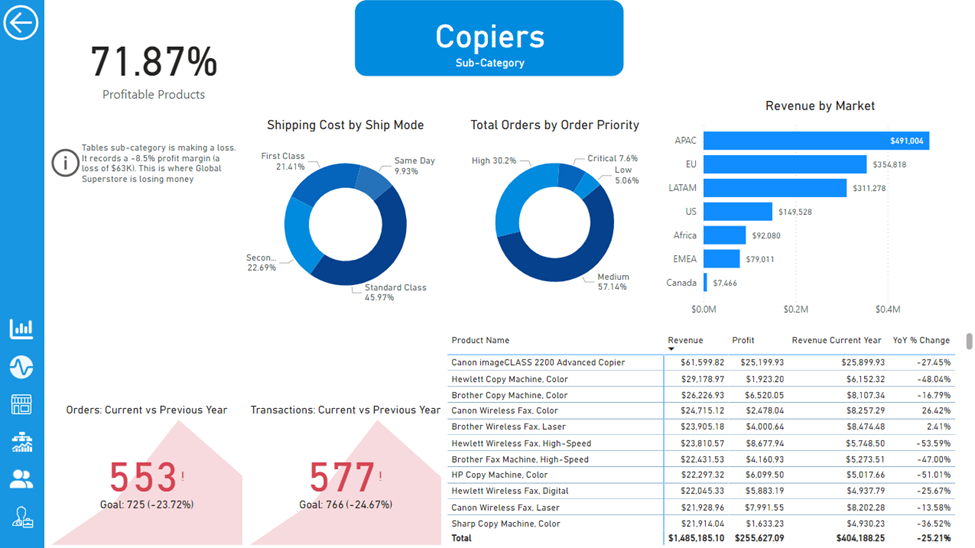
We also included further report pages for a deeper analysis of the category like subcategory, and product.
Subcategory:
Product:
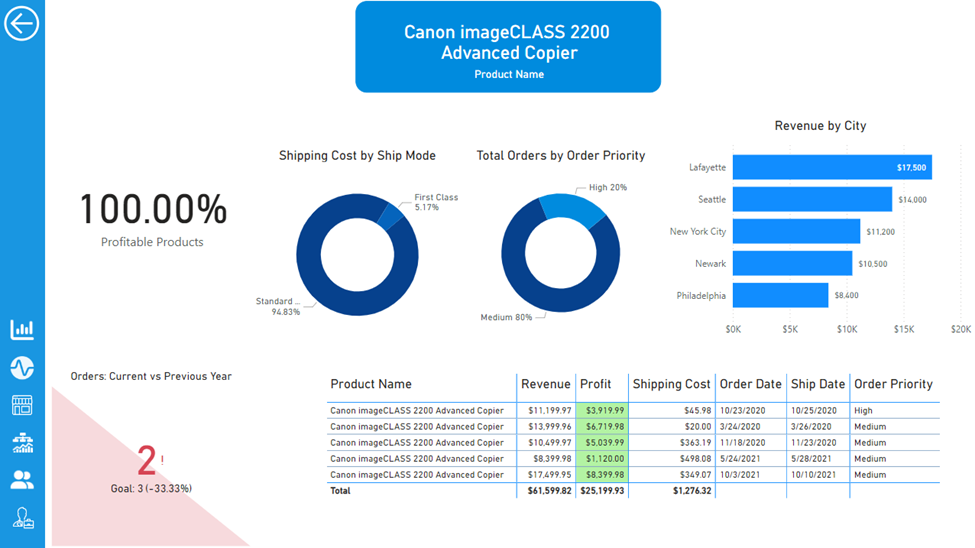
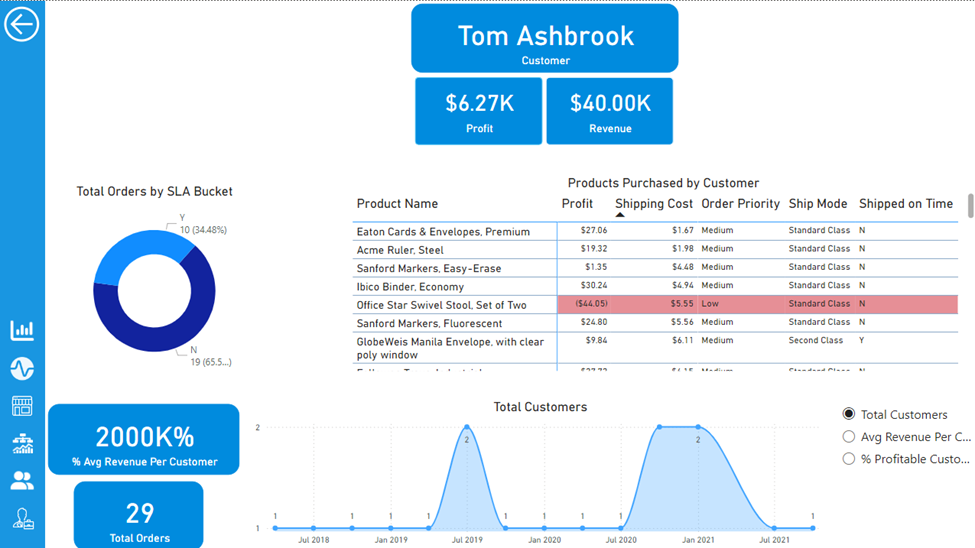
Customer Detail: The next report page provided a deeper insight into customer behavior and value. It used donut charts to break down order shipments, a matrix to show products purchased by the selected customer with further variables like profit, shipping cost, order priority etc. Some further visuals are also being added to track customers purchase behavior.
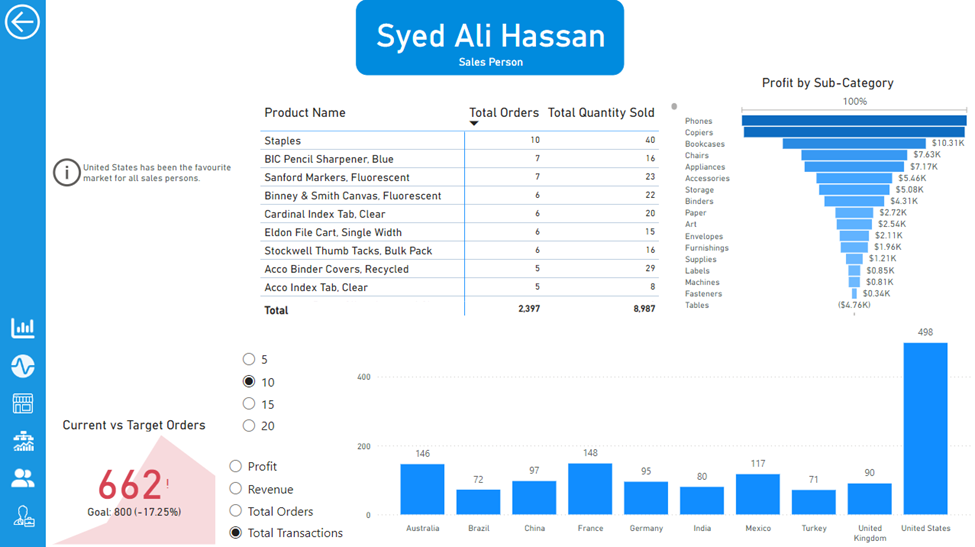
Sales Person: In order to visualize the sales person’s performance, we have included a separate report page, using a drill through feature, that shows the overall performance of a sales person using different visuals. A matrix that displays products sold by a sales person with orders and quantity, a funnel chart that shows profit by subcategory, a KPI card for current vs previous orders, and a line chart that shows profit, revenue, orders and transactions.
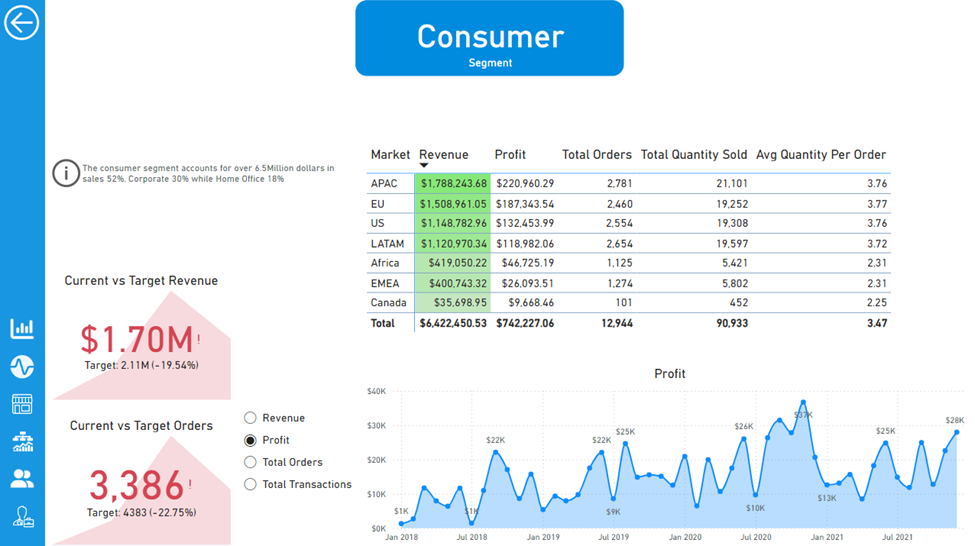
Segment: The next report page displays sale for a selected segment. A matrix table to display market wise performance for a segment, KPI cards for revenue and orders comparison, and an area chart for showing revenue, profit, orders and transactions over time.

Adventure Works (Power BI)
The Situation:
Adventure Works is a fictional global manufacturing company that produces cycling equipment and accessories, with activities stretching across three continents (North America, Europe, and Oceania). Our goal is to transform their raw data into meaningful insights and recommendations for management. More specifically, we need to:
- Track KPIs (sales, revenue, profit, returns)
- Compare regional performance
- Analyse product-level trends
- Identify high-value customers
The Data:
We’ve been given a collection of raw data (CSV files), which contain information about transactions, returns, products, customers, and sales territories in a total of eight tables, spanning from the years 2020 to 2022.
The Task: We are tasked with using solely Microsoft Power BI to:
- Connect and transform/shape the data in Power BI’s back-end using Power Query
- Build a relational data model, linking the 8 fact and dimension tables
- Create calculated columns and measures with DAX
- Design a multi-page interactive dashboard to visualize the data in Power BI’s front-end
The Process:
1. Connecting and Shaping the Data
Firstly, we imported the data into the Power Query editor to transform and clean it. The next process involved:
Removing Duplicates: Duplicate entries were removed from the dataset to ensure accurate analysis.
Handling Null or Missing Values: For some columns, missing values were replaced with defaults or averages. Null values in “key” columns were removed using filters.
Data Type Conversion: Columns were converted to appropriate data types to ensure consistency. Dates were converted to Date type, numerical columns to Decimal or Whole Numbers, and text columns to Text.
Column Splitting and Merging: Several columns were split to separate concatenated information, or merged to create a unified name (such as Customer Full Name).
Standardising Date Formats: All date columns were formatted consistently to facilitate time-based analysis. This step was important for ensuring accurate time-series analysis in Power BI.
Removing Unnecessary Columns: Irrelevant columns were removed to streamline the dataset. This helped focus the analysis on relevant information, reducing memory usage and improving performance.
2. Building a Relational Data Model
Secondly, we modeled the data to create a snowflake schema. This process involved creating relationships between the dimension and fact tables, ensuring cardinalities were one-to-many relationships.
Enabling active or inactive relationships, creating hierarchies for fields such as Geography (Continent-Country-Region) and Date (Start of Year-Start of Month-Start of Week-Date), and finally hiding the foreign keys from report view to ease the data analysis and visualization steps and reduce errors.

3. Creating Calculated Columns and Measures
Next, we used Power BI’s front-end formula language, DAX, to analyze our relational data model and create several calculated columns (for filtering) and measures (for aggregation), that we could later reference and use when analyzing and visualizing the data.
We used calculated columns to determine whether a customer is a parent (Yes/No), a customer’s income level (Very High/High/Average/Low), a customer’s priority status (Priority/ Standard), and the customer’s educational level (High School/ Undergrad/ Graduate).
The list of calculated measures is available below and includes key information on revenue, profit, orders, returns, and more.

4. Visualising the Data
The final step of the project was creating a multi-page interactive dashboard, including a range of visuals and KPIs that could serve management and lead to informed decision-making. We used several visuals and tools to demonstrate and visualize the data across the 4 report pages, including KPI cards, line and bar charts, matrices, gauge charts, maps, donut charts, and slicers. We made sure the report was fully interactive and simple to navigate, with icons used to enable filters, cancel filters, and guide users to each report page with ease. Features such as drill-through, bookmarks, parameters, and tooltips were also used throughout the dashboard, further enhancing its usefulness and impact on management.
Executive Dashboard: The first report page provides a high-level view of Adventure Works’ overall performance. We used card visuals to present Key Performance Indicators such as overall revenue, profit margins, total orders, and return rates. We also included additional cards to compare current and previous month performances, providing insights into recent trends, a line chart to visualize the trending revenue from 2020-2022 and highlight long-term performance, and presented the number of orders by product category to aid in understanding product sales distribution, and used a further table to display the top 10 products based on key indicators (total orders, revenue, and return rate).

Map: The second report page consisted of a map visual, an interactive representation of sales volume across different geographical locations. This offered insight into Adventure Works’ global sales distribution and worldwide reach.

Product Detail: The third report page focuses on detailed product-level analysis. It displayed detailed product information for the selected top 10 products from the Executive Dashboard, using the drill-through feature. It also included gauge charts presenting actual performance vs target performance of monthly orders, revenue, and profit, and included an interactive line chart to visualize potential profit adjustments when manipulating the price of the product, aiding in strategic decision-making regarding pricing strategies. This report page also included a line chart including key weekly product information on total orders, revenue, profit, returns, and return rate.

Customer Detail: The fourth and final report page provided a deeper insight into customer behavior and value. It used donut charts to break down customer groups into income level and occupation categories vs. total orders, helping in customer segmentation tactics, and used a matrix aided by KPI cards to identify high-value customers based on order and revenue contributions, aiding in identifying high-value customers and sales opportunities.
